


The short answer
A legacy contact is someone you choose ahead of time to get into your account data after you die. On iPhone (iOS 15.2 or later), go to Settings > your name > Sign-In & Security > Legacy Contact. Android doesn’t have that exact feature. Instead, set up Google’s Inactive Account Manager at myaccount.google.com/inactive.
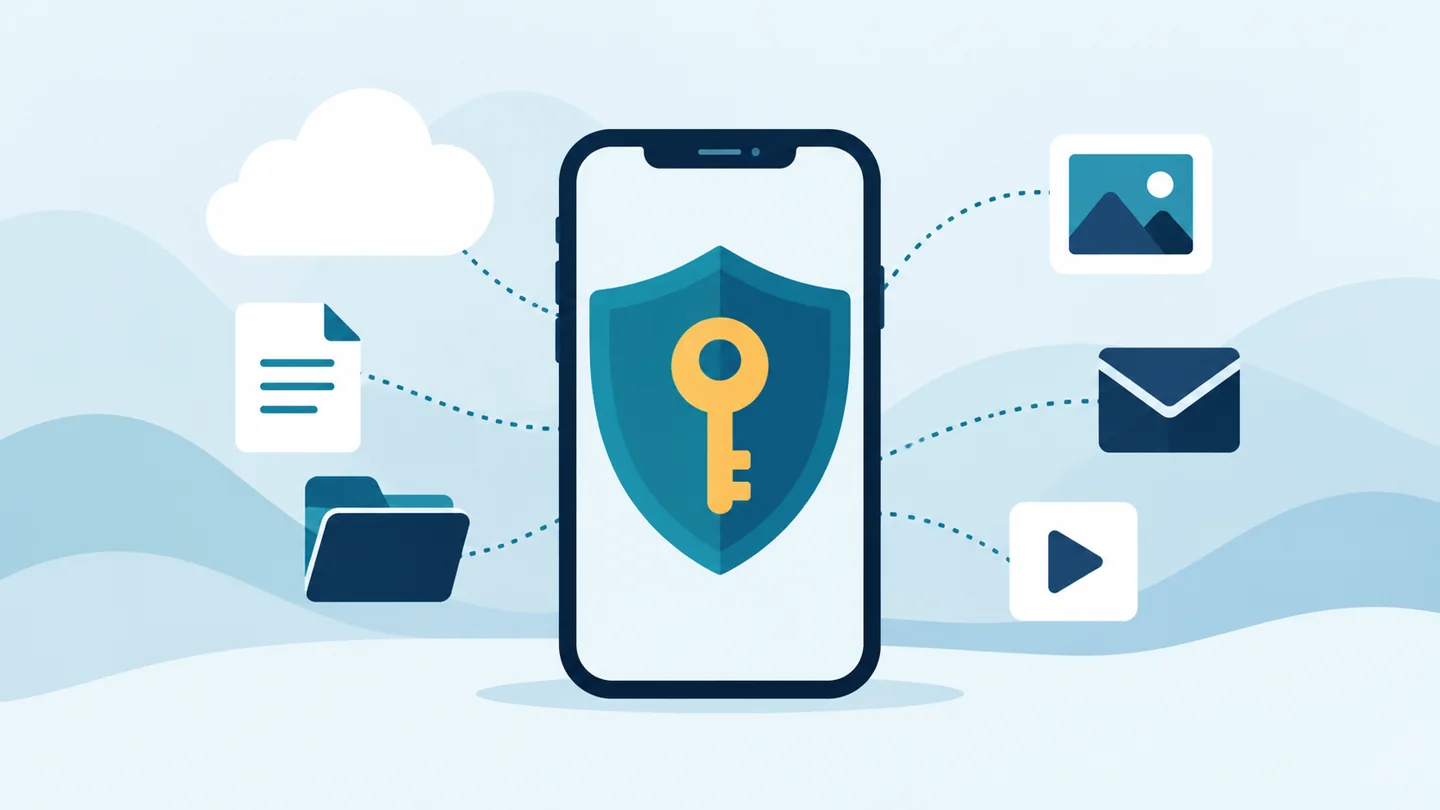
What is a legacy contact?
Your phone holds years of photos, messages, notes and documents. Most of it lives in a cloud account like Apple iCloud or your Google Account. That account is locked to you. If something happens to you, your family usually can’t get in, even with a death certificate, unless you set something up first.
A legacy contact solves that. You choose who gets access, and you do it while you can still decide. It takes about five minutes, and it saves the people you love a long, frustrating process later.
How to add a legacy contact on iPhone
Apple calls this feature Legacy Contact. You need iOS 15.2 or later and two-factor authentication turned on for your Apple Account. Your legacy contact must be at least 13 years old, and they don’t need an iPhone.
- Open Settings and tap your name at the top.
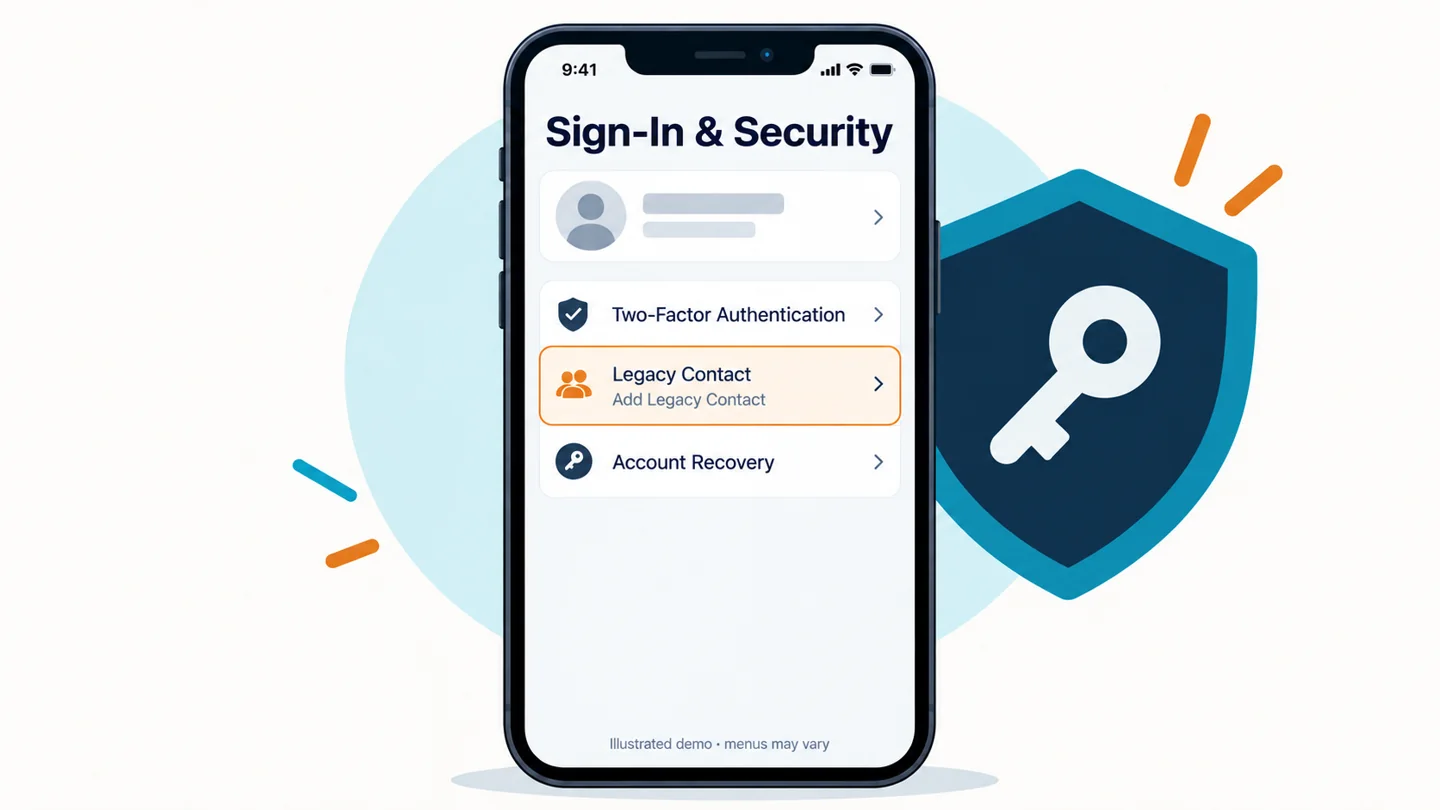
- Tap Sign-In & Security. (On older versions of iOS this is called Password & Security.)
- Tap Legacy Contact, then Add Legacy Contact.
- Pick someone from your contacts or type in their details.
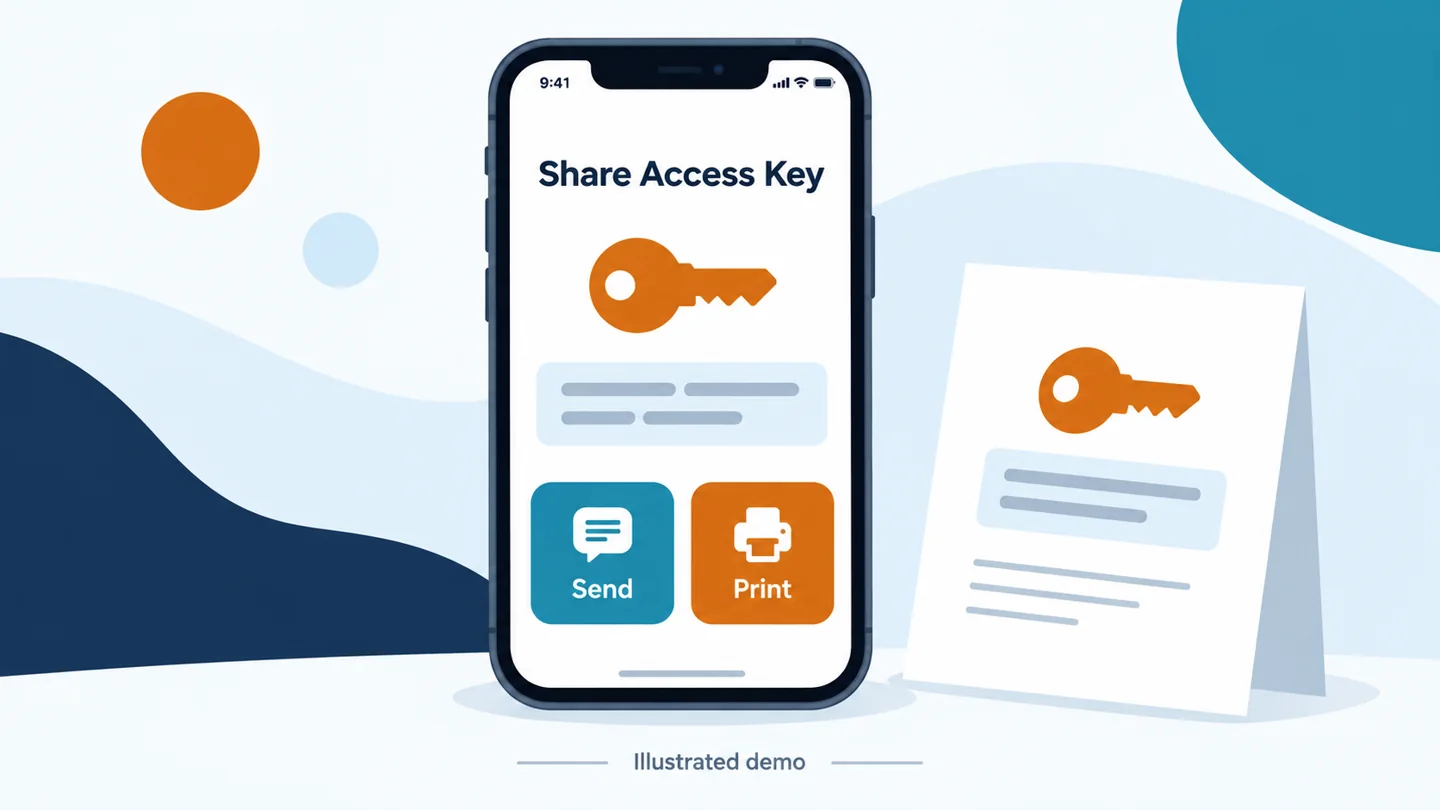
- Choose how to share the access key: send it in a message, or print a copy.
If your contact uses an Apple device with a recent iOS version, the key is saved in their own settings automatically. If not, give them the printed copy and ask them to keep it somewhere safe, like with their important papers. You can add more than one legacy contact and remove anyone at any time.
Android: what you can do instead
Here’s the honest version: Android has no feature called “Legacy Contact.” Your photos, Gmail, contacts and Drive files are tied to your Google Account, so the setting you want is Google’s Inactive Account Manager. It works on any phone, including Samsung and Pixel, and even from a computer.
Instead of waiting for proof of death, it waits for your account to go quiet for a period you choose. Then it alerts the people you picked.
- On your phone, open Settings > Google > Manage your Google Account. (Or go to myaccount.google.com/inactive in a browser.)
- Tap Data & privacy, then scroll to Make a plan for your account (Inactive Account Manager).
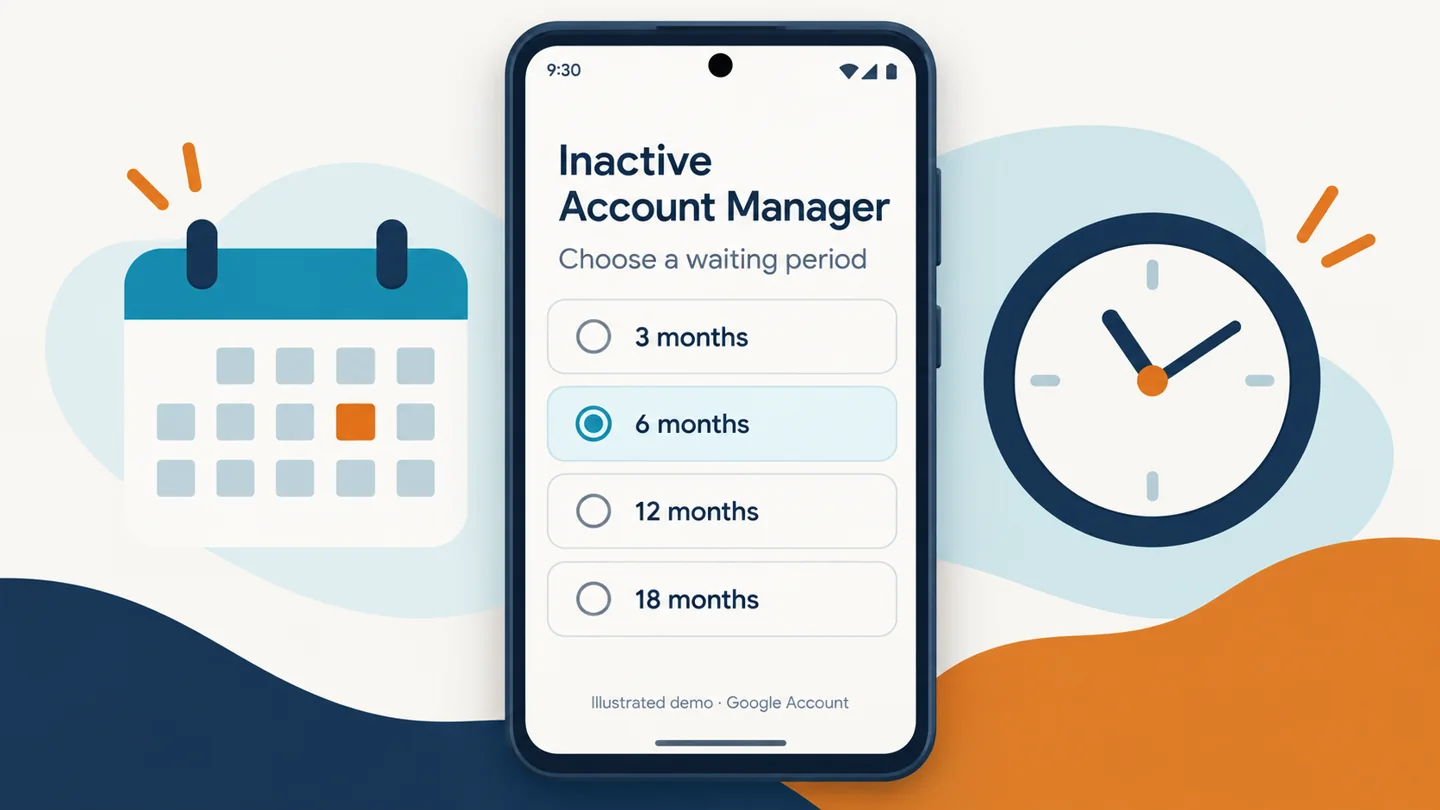
- Choose a waiting period: 3, 6, 12 or 18 months without activity.
- Add your contact information so Google can check in with you before it does anything.
- Add up to 10 trusted people and choose which data each one can download, such as Google Photos, Drive or Gmail.
- Optionally set an automatic email reply, and decide whether Google should delete your account afterward.
Google emails and texts you several times before the waiting period runs out, so a long vacation won’t set it off by accident.
What your contact can and can’t access
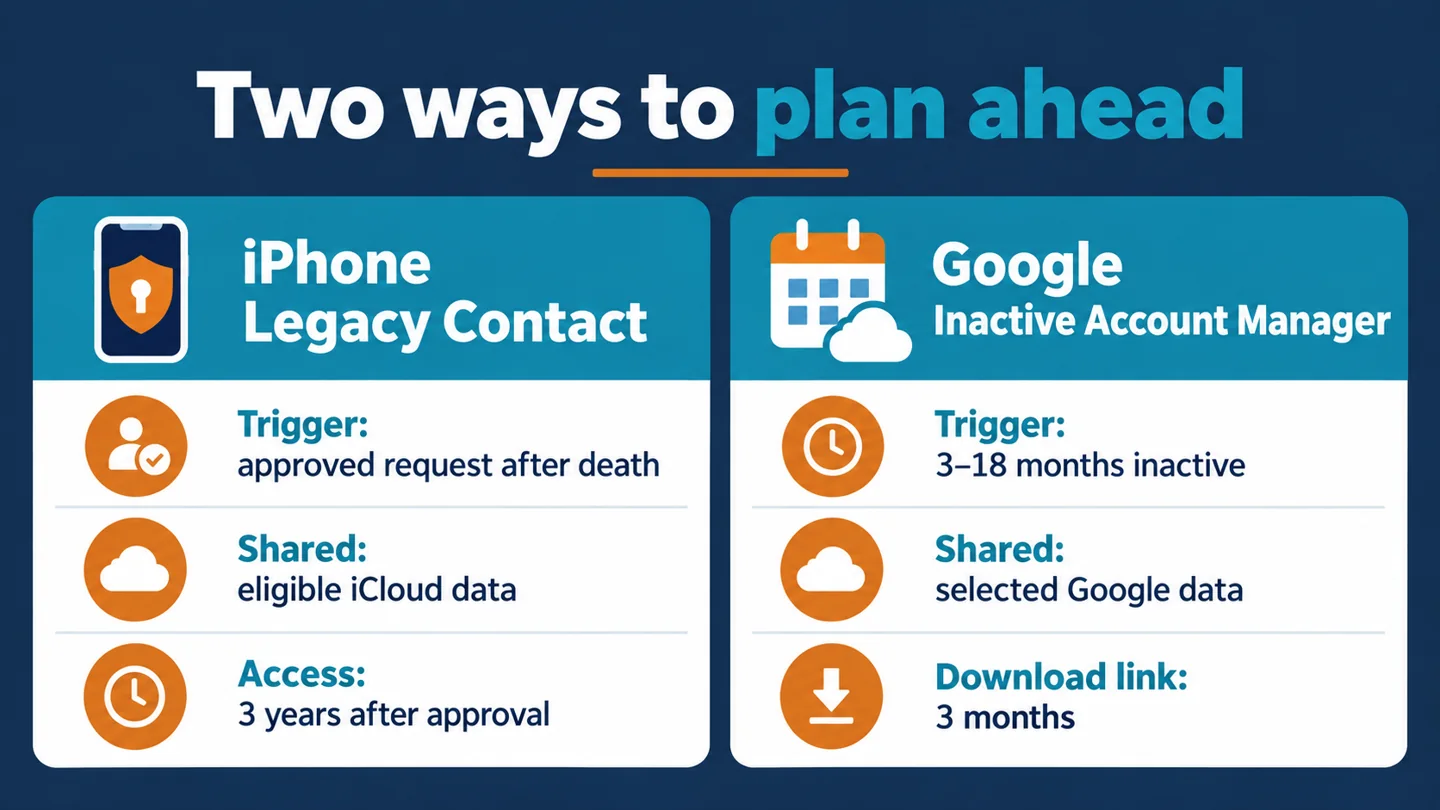
On iPhone, an approved legacy contact can get most of what’s stored in iCloud: photos, messages, notes, files, contacts, calendar events, downloaded apps and device backups.
They can’t get passwords saved in iCloud Keychain, payment information, or purchased movies, music and books. Apple gives them access for three years after approving the request. After that, the account is permanently deleted, so they should download everything they want to keep.
On Google, your trusted people get an email with a link to download only the data types you chose for them. The link stays active for three months. They don’t get your password or the ability to sign in as you.
What they’ll need when the time comes
For Apple, your legacy contact needs two things:
- The access key you shared with them
- A copy of your death certificate
They submit both at digital-legacy.apple.com, or from Settings on their own Apple device. Apple reviews the request and then gives them a special Apple Account for reaching your data.
For Google’s Inactive Account Manager, no death certificate is needed. The alert goes out automatically once the waiting period ends.
If you never set anything up, Apple and Google both accept requests from family members. These usually require proof of death and legal documents, and access isn’t guaranteed. Setting it up now avoids that.
More tips for a complete digital plan
- Cover your passwords too. Neither Apple nor Google hands over your saved passwords. A password manager can. Bitwarden has an Emergency Access feature that lets a trusted person request access to your vault after a waiting period you set. 1Password offers an Emergency Kit you can print and store with your will.
- Social media is separate. Facebook lets you name a legacy contact to manage a memorialized profile, or you can ask for your account to be deleted. It’s optional, but worth deciding.
- Write it down. Keep a simple list of your important accounts and where the access key is stored. Tell your legacy contacts they’ve been chosen.
- Check it once a year. People move, change numbers and change roles in your life. Update your contacts when that happens.
For business owners
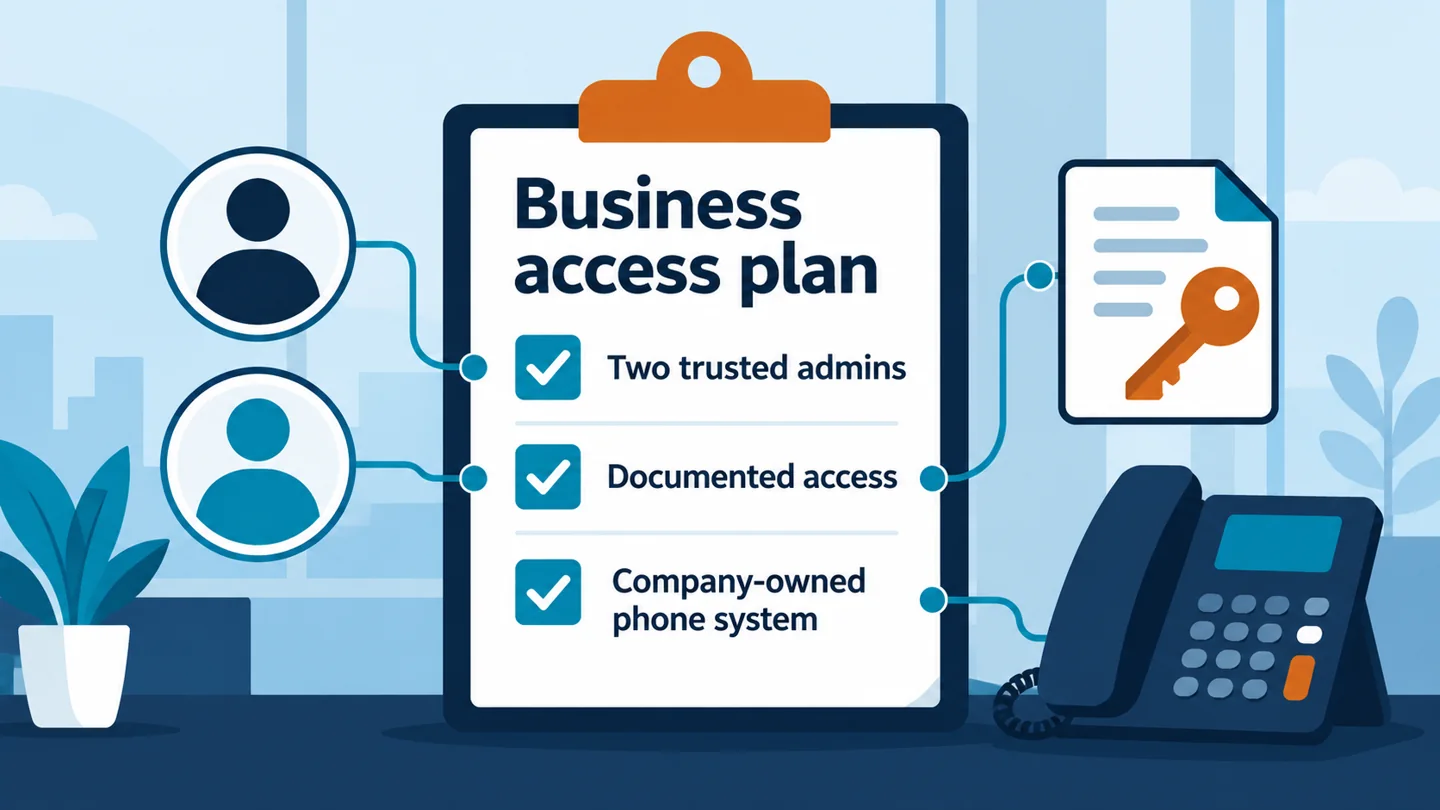
If you run a business, your personal legacy plan isn’t enough. Company email, files and phone systems need their own plan.
- Keep business data off personal accounts. Company files shouldn’t live in a personal iCloud or Gmail account, or only on your phone.
- Have more than one admin. In Microsoft 365 or Google Workspace, make sure at least two trusted people have admin access. If the only admin is gone, recovery can take weeks.
- Document who can access what. A written plan should cover your domain, email, phone system, banking portals and key vendor logins.
- Plan for your phone number. Your business number should belong to the company’s phone system, not a personal cell plan.
Castle Technology Partners has helped businesses in Daphne, Mobile and Baldwin County with this kind of planning since 2019. We can help you set up admin access, organize company accounts and move your phones onto a business system. Learn more about our managed IT services and business telephone systems, or call us at 251-313-0411. You can also email solutions@callcastle.tech.
Frequently asked questions
Does Android have a Legacy Contact feature?
No. Android has no feature with that name. The closest option is Google's Inactive Account Manager, which shares your chosen Google data with up to 10 people after your account has been inactive for 3 to 18 months.
What iOS version do I need for Legacy Contact?
You need iOS 15.2 or later, plus two-factor authentication on your Apple Account. Your legacy contact must be at least 13 and doesn't need an Apple device.
Can my legacy contact see my passwords?
No. Apple doesn't share iCloud Keychain passwords, and Google's Inactive Account Manager doesn't share your password. Use a password manager's emergency access feature for that.
Does my legacy contact need a death certificate?
For Apple, yes. Your contact needs the access key and a copy of your death certificate. Google's Inactive Account Manager doesn't need one, because it's triggered by inactivity.
What happens if I lose the access key?
You can open Settings > your name > Sign-In & Security > Legacy Contact and view or reshare the key at any time. You can also remove a contact and add them again.
Can I set this up for my business accounts?
Not in the same way. Microsoft 365 and Google Workspace use admin roles instead. Make sure at least two trusted people are admins and that your access plan is written down.
Sources
- Apple Support: How to add a Legacy Contact for your Apple Account — https://support.apple.com/en-us/102631
- Apple Support: What data a Legacy Contact can access — https://support.apple.com/en-us/102431
- Apple Digital Legacy request portal — https://digital-legacy.apple.com
- Google Account Help: Use Inactive Account Manager — https://support.google.com/accounts/answer/3036546
- Google Account Help: Submit a request regarding a deceased user’s account — https://support.google.com/accounts/troubleshooter/6357590
- Bitwarden Help: Emergency Access — https://bitwarden.com/help/emergency-access/
- 1Password Support: Emergency Kit — https://support.1password.com/emergency-kit/
- Facebook Help: Legacy contacts — https://www.facebook.com/help/1568013990080948